This page is normally reached by clicking on the ‘Adjust Stock’ menu item that can be found on the left hand menu of the ‘Home’ page. The initial view is figure 1 below:
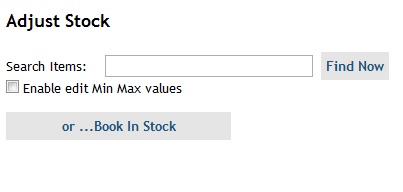
Figure 1 - Initial view of the Adjust Stock Page
NOTE FOR Administrators only: To be able to have access to this page users will have to have "Role Function - Warehouse - Stock - Amend", which should normally be linked to the "Warehouse Manager" Role. The Warehouse to which you wish to give them access will also have to be linked to their User Account - This is done via the Company Admin - Customer screen. In exceptional circumstances and you wish to be able to get to the screen you can go directly to the page: /empAdjustStock.aspx.
This page is the page where all Stock Adjustments are made. There are 2 types of Stock Adjustment:
- The booking in of stock
- General adjustment of stock. This is used for other reasons other than booking in of stock, e.g. Stock Take, or damaged stock
Please see the 2 sections below for more details.
The booking in of stock
Stock needs to be booked in when delivered to the Warehouse. Stock deliveries should always be accompanied by a delivery note.
To book in stock do the following:
1/ From the ‘Adjust Stock’ page, simply click on the ‘or …Book In Stock’ button.
2/ Select an order by clicking on the ‘—Please choose one –‘ drop down beside the ‘Select order (ORDER ID): label. Normally the dispatch note received with the goods will have the original order number and date placed on it, so as to make it easy to find the correct order in the drop down.
NOTES: There are 2 types of order that will be shown in the drop down:
- Bulk Replenishment Orders. These will contain the word ‘REPLEN’ in the drop down. These are bulk orders that have been placed to replace stock used by ‘Order Types which decrement stock‘. These would normally be placed approximately every week, with the intention that they will help bring the stock in the Warehouse back to pre-defined levels.
- Bulk Ad Hoc Orders. These are orders that have been placed against a specific Purchase Order, normally to make up for a permanent deficiency in stock, e.g. Water damaged items.
3/ Once an order has been selected against which you wish to book in stock, the page will automatically show all of the items on that order, as in Figure 1.
4/ Book in the stock. There are 2 ways of adjusting the stock of an item(s):
- Simply clicking in the checkbox under the ‘All Delivered?’ column, or
- Adjusting the ‘Quantity Received Now’ figure up and down to the amount actually delivered, if not ‘All Delivered’. If neither of these actions are performed no stock will get booked in against the item.
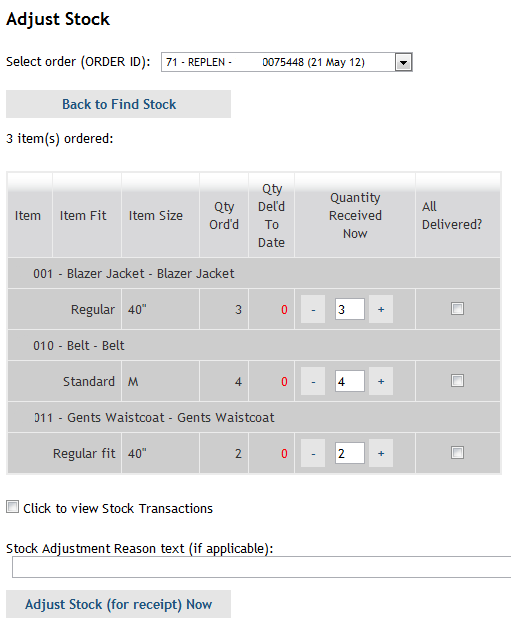
Figure 2 - Booking in stock
This process can be performed against as many items as you wish – In the case of a complete order being delivered you will do this for every item.
NOTES:
- The figure in ‘Qty Del’d To Date’ column will be highlighted in red when this quantity is less than the ‘Qty Ord’d’.
- By default the ‘Quantity Received Now’ column will show the quantity still to be delivered.
5/ To complete the book in procedure simply click on the ‘Adjust Stock (for receipt) Now’ button at the bottom of the page. Upon successful booking in of the stock the screen will change, and confirm how many items you have booked in, as in Figure 3 below:
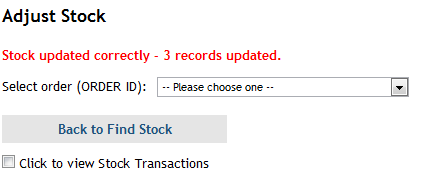
Figure 3 - Stock book in confirmation page
If you wish, prior to pressing the ‘Adjust Stock (for receipt) Now’ button at the bottom of the page, you can enter some text in the ‘Stock Adjustment Reason text (if applicable)’ At the time of writing 9th July 2012) the number of characters available in this field when booking in stock against an order is 45 characters, otherwise it is 100 (98?) characters.
IMPORTANT NOTES:
- This screen will only show you stock for items that are in Wardrobes, i.e. Items that may be in the Warehouse, but are NOT in any wardrobe will not be shown, and will not be searchable.
- If you haven’t done any action that interacts with the server, e.g. Finding stock values, updating stock values, for 20 minutes then the system will force you to log in again. If this happens when you are booking in stock then you will lose any adjustments that you have entered onto the screen. If you are unsure how long it has been since you last interacted with the server it would be best to refresh the screen before you start entering stock adjustments, which will give you a full 20 minutes once again.
- It is possible to book in either a full delivery, over delivery or a part delivery for an order at any time.
- If the ‘All Delivered?’ checkbox is checked AND the amount is adjusted up / down for a particular line item, then by default the amount is used, and the ‘All Delivered?’ column checkbox is ignored.
- If neither the ‘All Delivered?’ checkbox is checked, nor the figure changed in the ‘Quantity Received Now’ column, then NO STOCK WILL BE BOOKED in for this item when the ‘Adjust Stock (for receipt) Now’ button is pressed.
- The figure in the ‘Qty Del’d To Date’ will always be highlighted in RED when the ‘Qty Del’d To Date’ is less than the ‘Qty Ord’d’. When all of a particular item has been delivered this figure will be coloured black.
- If you have been distracted, and have lost track of what figures you have changed, and not yet clicked the ‘Adjust Stock (for receipt) Now’ button you can simply discard all of your changes and get the screen back to how it was when you started by simply changing the order selected at the top of the screen to another order, then change it back again to the desired order.
- If you wish to see what stock has previously been booked in against an order simply click on the ‘Click to view Stock Transactions’ checkbox at the bottom of the page. Please see Figure 2 below for an example of how Stock Transaction from previous deliveries will be shown for an order – PLEASE NOTE that you must only do this either BEFORE or AFTER you have booked in stock otherwise you will lose the information you have already entered, but not yet saved.
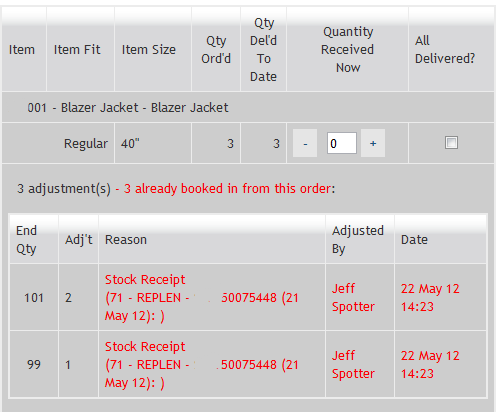
Figure 4 - Stock item with previous delivery transactions
General adjustment of stock.
This is used to make changes to stock values for reasons other than booking in of stock, e.g. Stock Take, or damaged stock.
To use this facility do the following:
1/ Find the item(s) for which you wish to adjust / check the stock. To do this - from the initial ‘Adjust Stock’ page, enter a search string into the ‘Search Items’ text box.
A search string can be a Model Number, e.g. SW001, or item name, e.g. Mens trousers, or part of a Model Number or item name, e.g. Trousers.
2/ Click on the ‘Find Now’ button and you will be shown any item(s), along with their current stock that match your search criteria. See Figure 5 below:
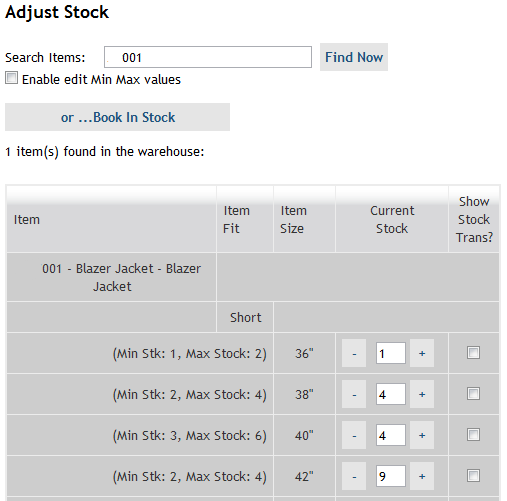
Figure 5 - Example of stock shown for an item
NOTES:
- If you wish to see the transactions that have been made that lead up to the current stock value of an item, at any time you can click in the checkbox beside the item in the ‘Show Stock Trans’ column, followed by the ‘Show Stock Transactions’ button at the bottom of the page, as in Figure 6 below.
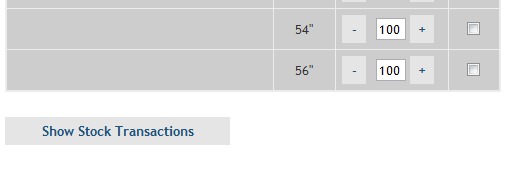
Figure 6 - Show Stock Transactions button (for selected items)
The Transactions associated with an item are shown in a table below the item, as in Figure 7 below.
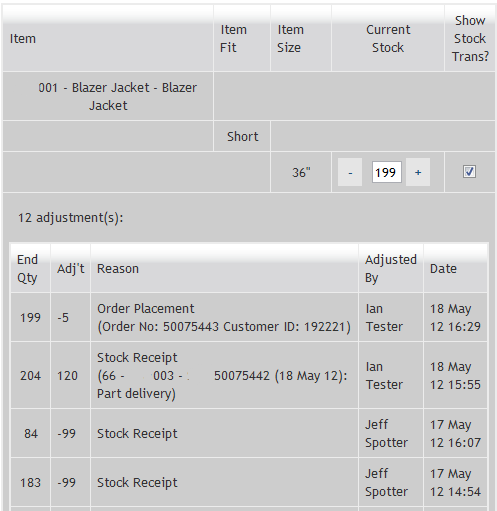
Figure 7 - Item with Stock Transaction Table shown below
3/ Once you have found the item for which you wish to adjust the stock, simply;
- adjust the ‘Current Stock’ figure up or down to the correct figure, then
- choose a ‘Stock Adjustment Reason’ from the drop down, and
- if appropriate enter some text into the ‘Stock Adjustment Reason text (if applicable) field’
- Finally click the ‘Adjust Stock Now’ button.
The system should come back and confirm the number of items for which you adjusted the stock, as in the figure 8 below.
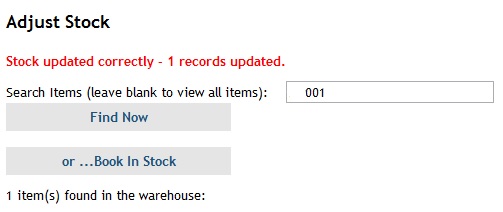
Figure 8 - Confirmation of General Stock adjustment
0 Comments